
If you have an older desktop or laptop sitting around, it is easy to assume its best days are behind it. But before you relegate that reliable old machine to a closet or a recycling center, there is a wonderful project you can tackle this weekend that will make it feel brand new again. By choosing to install Linux Mint on that computer, you can breathe fresh, snappy life into aging hardware without spending a dime.
The best part? You do not have to give up your familiar setup or risk losing anything to try it. In my latest video, I walk you through how to put Linux Mint on a completely separate second drive, leaving your existing Windows installation entirely untouched and completely safe.
The Magic of the Two-Drive Setup
A lot of people hesitate to try Linux because they are worried about accidental data loss or making their computer too complicated to use. That is why the dual-drive method is such a beautiful solution.
Think of it like having two completely separate houses on the same street. Windows stays in its house, and Linux Mint moves into its own brand-new house on the second drive. They share the same computer hardware, but their files, boot systems, and updates never cross paths or interfere with one another. If you ever decide Linux isn’t for you, you can simply remove or wipe that second drive, and your Windows system will behave as if nothing ever happened. It is the ultimate low-risk, high-reward way to explore something new.
In the video, I also share a simple organizational trick that most standard tutorials completely skip over. I will show you how to split your Linux drive into two distinct zones: one for the operating system itself, and one specifically for your personal files like photos and documents. It takes less than a minute to set up, but it gives you incredible flexibility down the road.
Demystifying the Tech: UEFI vs Legacy Boot
One of the biggest hurdles that trips people up when playing with older computers is the technical jargon around how computers turn on. Specifically, understanding the difference between uefi vs legacy boot can mean the difference between a smooth setup and a frustrating blank screen.
- Legacy BIOS: This is the traditional, text-only system that has been running on millions of computers since the 1980s. It is incredibly reliable, but it requires specific settings when you are creating your installation media.
- UEFI: This is the modern standard that started taking over around 2012. It features pretty graphics and handles newer, massive hard drives differently.
If your computer is an old friend that has been with you for over a decade, there is a very good chance it’s using Legacy BIOS. In the video, I show you a simple, 5-second trick right inside Windows to check exactly which version your machine uses.
Once we know what your computer is running, I will guide you through using a free tool called Rufus to format your USB installer perfectly. Getting this step right is critical, because if you use modern settings on an older Legacy machine, the computer won’t even realize the USB drive is plugged in.
Ready to Bring Your Old PC Back to Life?
You do not need a PhD in computer science to make this happen. You just need a standard USB thumb drive, a few spare minutes, and a willingness to follow along.
I designed the video guide to be a safe harbor from the usual overwhelming tech-bro tutorials. We go through the entire process of installing Linux Mint together, step-by-step, at a comfortable pace. I will show you exactly how to navigate those old text-based menus, how to safely select your second drive without ever bothering Windows, and how to set up a clean startup menu so you can easily choose between Windows and Linux Mint every time you turn your computer on.
Grab a coffee, click the video above, and let’s get that old computer running like new again!
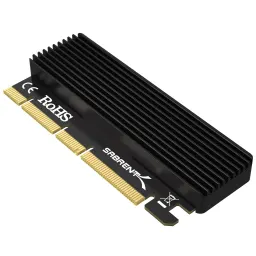
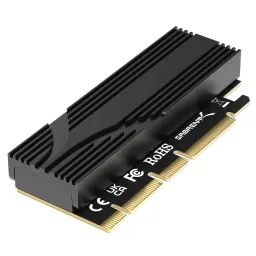
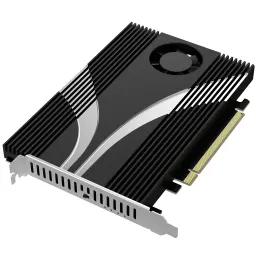
As Promised in the Video: Recommended Sabrent M.2 NVME to PCIe Adapter Cards
(The links below are affiliate links. I may earn a commission on any purchase which does not affect the price you pay and helps me fund this site and my YouTube channel.)
Single PCIe Gen 3:
Single PCIe Gen 5:
4-drive PCIe Gen 3:
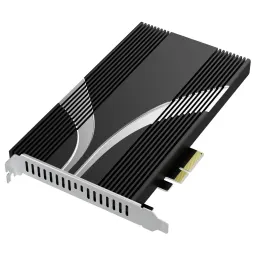
4-Drive PCIe Gen 4:
Discover more from tektoc
Subscribe to get the latest posts sent to your email.