
If the thought of losing your photos and documents to a sudden crash keeps nagging at you, here’s some good news: you don’t need a monthly cloud subscription to protect them. You can back up your PC to an external hard drive using a tool that’s already sitting on your computer, completely free.
Backing up tends to land on that list of chores we all mean to get to eventually — right alongside cleaning behind the fridge. But it only takes one coffee spill or one unexpected power surge to turn “I’ll do it next weekend” into “I wish I’d done it last weekend.” The good news is that a solid, simple backup takes just a few minutes to set up, and once it’s running, it looks after itself.
Getting the Right Hardware
You don’t need a fancy network server or a complicated setup. All you need is a portable external hard drive, the kind you can pick up at any electronics store or online. If your budget allows, a solid-state drive (SSD) is worth the extra cost — with no moving parts, it holds up much better if it ever gets bumped or knocked off a desk.
Aim for at least 1TB, though 2TB gives you more breathing room. Once your drive is in hand, setup is genuinely simple: plug the included USB cable into the drive, plug the other end into your computer, and Windows takes care of the rest.
See the links at the bottom of the page for tektoc recommended drive enclosures and external drives.
Setting Up Windows File History
This is where things get easy. Windows has a built-in backup application, but it mostly exists to steer you toward a paid OneDrive subscription — not what we’re after here.
Instead, open your Start menu, type “control panel,” and click on Windows File History once the window appears. You’ll see your connected external drive listed right there. Click the button that says “Turn On,” and that’s genuinely the whole setup process.
From that point forward, Windows quietly copies your changed files once every hour, entirely in the background. By default, it protects your libraries (documents, music, pictures, and videos), anything on your desktop, your saved browser favorites, and your contacts. If you’ve got a custom folder tucked away somewhere else — tax receipts, a hobby project, whatever it might be — you can add it easily. Just right-click the folder, choose “Include in library,” and pick whichever library fits best. Windows File History will start protecting it automatically from then on, without moving the folder anywhere.
The One Rule You Can’t Skip
Here’s the step that’s easy to miss but genuinely matters: once your first backup finishes, unplug that external drive and put it away on a shelf.
It might seem counterintuitive since File History only works when the drive is connected. But leaving it permanently plugged in means that if your computer ever picks up ransomware or a virus, that malware can travel straight down the USB cable and destroy your backup right along with your original files.
By disconnecting the drive, you create what’s called an “air gap” — a physical barrier that keeps malware from ever touching your backed-up files. Turn reconnecting it into a simple weekly habit, maybe a Sunday morning routine. Plug it in, let File History catch up on the week’s changes, then unplug it and set it aside again.
If your computer ever does fail completely, recovery is just as simple: plug that drive into a new machine, open File History, and restore everything with a single click.
That’s the whole plan — free, low-effort, and genuinely effective. No subscriptions, no complicated software, just a little external drive doing its job quietly in the background.
For full instructions on using File History as your robust backup plan, check out the video above.
External Drives and Drive Enclosures Available on Amazon – As Promised in the Video
These are the drives and enclosures that I have relied on personally and I can attest to their reliability and utility.
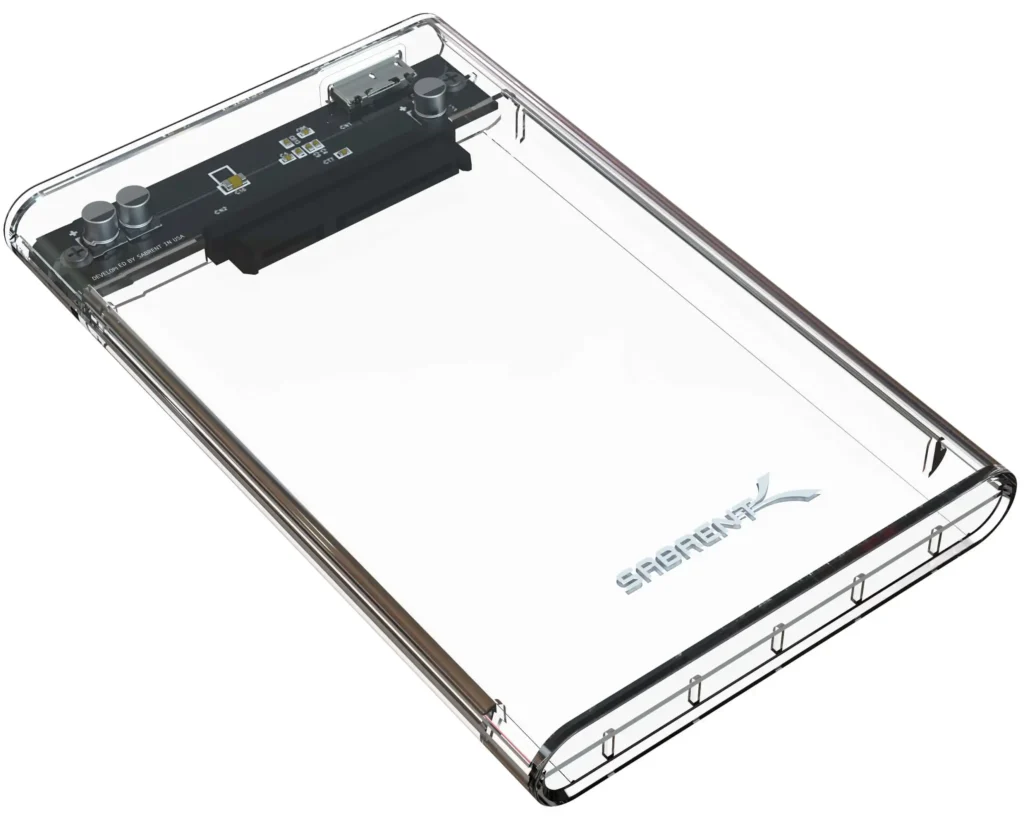
Sabrent Clear Enclosure for 2.5” SSDs and HDDs – USB 3.0: https://tektoc.net/recommended/sabrent-2.5-inch-clear-enclosure
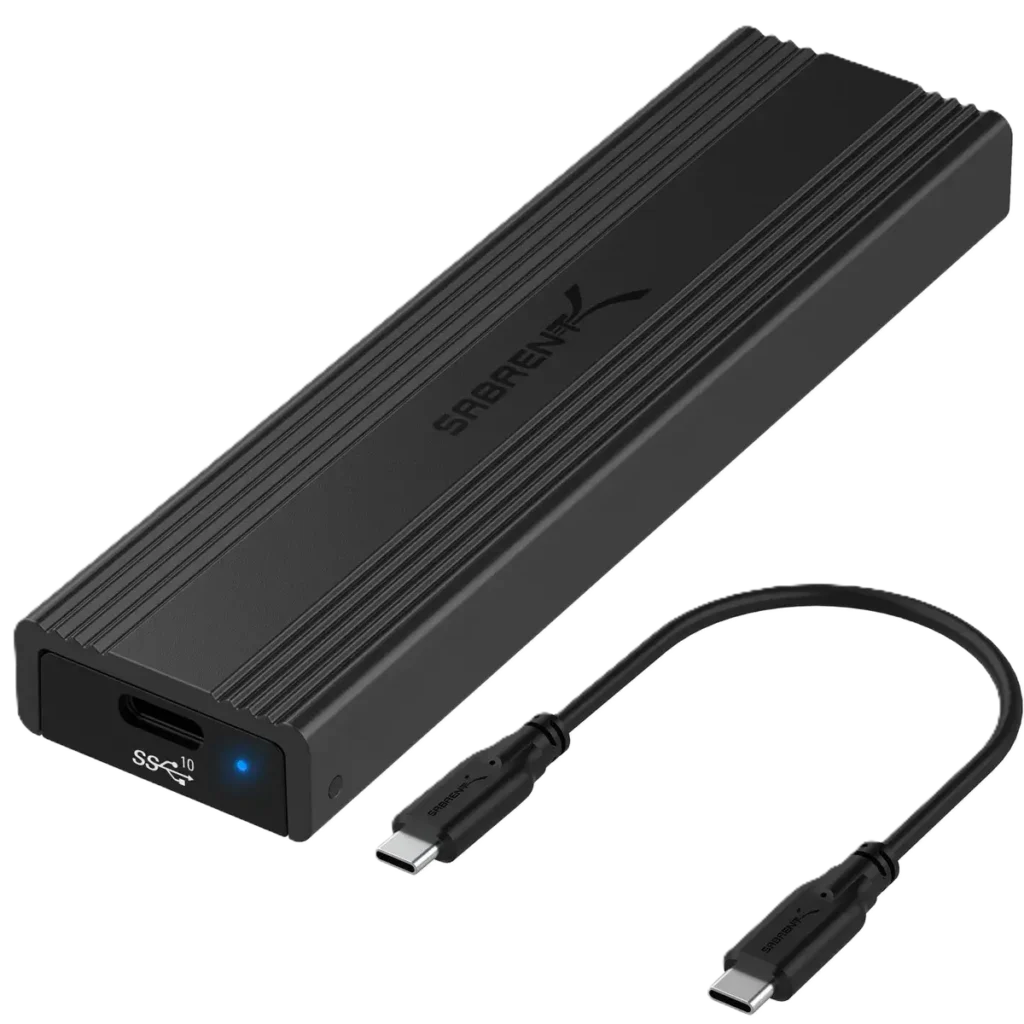
Sabrent M.2 Drive Enclosure (NVMe and SATA) – USB 3.2: https://tektoc.net/recommended/sabrent-nvme-enclosure
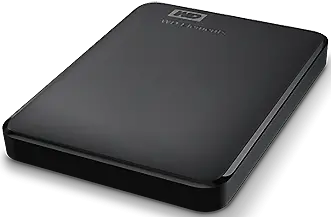
Western Digital Elements External Hard Drives (various sizes 1 TB – 6 TB – Great Value!): https://amzn.to/45fUT5K
As an Amazon Associate and eBay Partner Network Affiliate I earn from qualifying purchases, which does not affect the price you pay. Thanks for supporting the site!
Discover more from tektoc
Subscribe to get the latest posts sent to your email.