
Laptops have never been my strong suit with Linux. And a 2-in-1 with a touch screen, a stylus, and a screen that flips around into a tablet? That’s exactly where I’d expect Linux to fall apart. So when I wiped Windows 11 off my little Asus and installed Fedora Linux, I was ready for a long night of fixes. Instead, and much to my surprise, everything just worked!
The Laptop Windows 11 Left Behind
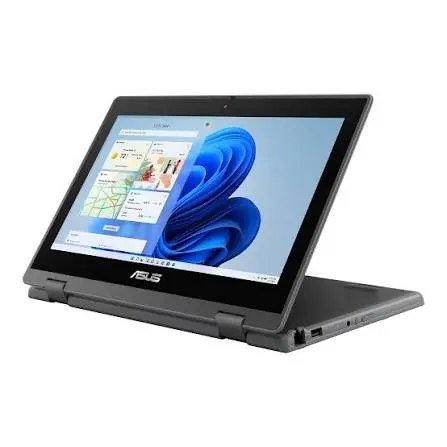
The star of this project is the Asus BR1100FK, a budget-friendly education-series 2-in-1 built mainly for students. It’s drop resistant, water resistant, and dustproof, which makes it great for travel.
The catch is what’s under the hood: a low-power Intel Pentium Silver N6000 processor and 8 GB of memory. Windows 11 simply isn’t built for a machine that modest. Mine was slow and buggy, and background tasks regularly ate up what little processing power it had.
Rather than send it off to electronics recycling, I installed Fedora Workstation 44 to give it a second life. If you’re still deciding whether a switch makes sense for you, my beginner’s guide to Linux vs Windows is a good place to start.
The Big Surprise: It Just Worked, Without a Lot of Fixing
The last time I put Linux on a laptop, the display, sound, and camera all needed fixing. This time, the Wi-Fi connected on the first try. Sound, webcam, trackpad gestures, and the brightness and volume keys all worked from the very first boot.
The 2-in-1 features were the real surprise:
- The touch screen handles tapping, swiping, and pinch-to-zoom smoothly and naturally.
- Tablet mode automatically switches off the keyboard and trackpad, so you don’t type by accident while holding it.
- The on-screen keyboard pops up on its own when you tap into a text box.
- The stylus worked the moment it touched the screen, for clicking and for drawing.
None of that required a single download or Terminal command. It works because people have spent years improving Linux support for touch screens and pens, and Fedora is quick to include those improvements.
Why the GNOME Desktop Shines on a Touch Screen
Fedora comes with the GNOME desktop, which is everything you see and touch: the windows, menus, and app launcher. GNOME gets its share of criticism, mostly because it doesn’t look like Windows or a Mac. On a touch screen, though, its design suddenly makes perfect sense.
One tap or swipe opens the Activities overview, showing every open window like cards on a table. Apps sit in a big, finger-friendly grid, just like a phone or tablet. A three-finger swipe up shows your open windows, and swiping sideways moves between workspaces. On a regular laptop, GNOME is perfectly nice. On a 2-in-1, it’s fantastic.
Three Small Tweaks with GNOME Extensions
Nothing was really broken, but three quick changes made the laptop feel like mine.
1. Minimize and maximize buttons. GNOME windows only have a close button by default. Pasting this one line into the Terminal app brings the familiar three buttons back:
gsettings set org.gnome.desktop.wm.preferences button-layout ":minimize,maximize,close"
2. Screen rotation. Rotation wasn’t behaving consistently in tablet mode, so I installed the Screen Rotate extension. Now it’s portrait for reading and landscape for watching, exactly as it should be.
3. An auto-hiding dock. The Dash to Dock extension puts my favourite apps at the bottom of the screen, a bit like the Windows taskbar, and slides them out of the way when a window needs the space.
GNOME Extensions Made Simple
GNOME extensions are like apps for your desktop: small, free add-ons that change how it looks and behaves. The easiest way to get them is the free Extension Manager app from Fedora’s Software app. Browse or search for an extension, click Install, and use the on and off switches to manage it. No coding required.
Stick with popular, well-reviewed extensions and start with one or two. If something looks odd after a big Fedora upgrade, switch them off one at a time to find the culprit. Turning one off is completely safe.
Should You Try Fedora Linux on Your Laptop?
My little Asus went from frustrating to a laptop I actually want to grab. It’s great on the road for writing, email, web browsing, streaming video, and editing photos. If that sounds like your day, and you have a touch screen or 2-in-1 gathering dust, Fedora with GNOME is well worth a look. Just check first that you don’t depend on any Windows-only programs.
Before changing anything, run Fedora from a live USB stick to test your touch screen, pen, and Wi-Fi. And if you decide to go ahead, back up your files first. If you’re still weighing your options, here’s how to choose the right Linux distribution, and you’ll find more install guides in my Linux playlist on YouTube.
Check out the video at the top of this page for the full story on this Linux install.
Education-Series Devices on Amazon
Want your own rugged laptop?
See the Asus BR1100F on Amazon (specifications may differ from the one in the video), or browse other rugged education-series laptops and Chromebooks.
As an Amazon Associate, I earn from qualifying purchases at no extra cost to you. Thanks for supporting tektoc!
Discover more from tektoc
Subscribe to get the latest posts sent to your email.